 FREE US. SHIPPING ON ORDERS $49+ | EXCLUSIVE DEALS AUTHENTIC PRODUCTS 100%
SATISFACTION & GUARANTEE
AGE VERIFIED
FREE US. SHIPPING ON ORDERS $49+ | EXCLUSIVE DEALS AUTHENTIC PRODUCTS 100%
SATISFACTION & GUARANTEE
AGE VERIFIED 



Important Payment Update
Credit card payments are temporarily unavailable due to a technical issue and will be restored within 24–48 hours.
In the meantime, please use Sezzle to place your order. If you’re unsure how to use Sezzle, follow the guide below.
How to Pay Using Sezzle: Step-by-Step Guide
If you are placing an order while regular card payments are unavailable, Sezzle is the easiest way to complete checkout. The guide below explains how to register, verify your account, choose a payment plan, and place your order without confusion.
How Sezzle Works
Sezzle lets you complete your purchase either by splitting the total into installments or by paying the full amount at once through its virtual card option. There are no additional charges from Sezzle in this process based on the checkout flow shown here.
Good to know: If you are a new Sezzle user, you may need to verify your mobile number, email, home address, billing address, and payment details during registration.

Faster Checkout with Sezzle App
For a smoother and faster experience, download the Sezzle app and complete your registration in advance. This helps you skip multiple steps during checkout and complete your order quickly.
| App Store | Google Play |
Step-by-Step: Pay Using Sezzle
Step 1: Add Products to Your Cart
Browse the store, add your preferred items to cart, and proceed to checkout as usual.
Step 2: Select Sezzle at Checkout
In the payment section, choose Sezzle and continue to the Sezzle payment page.
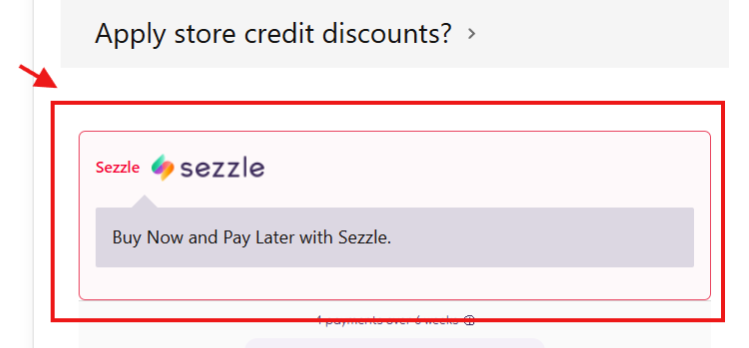
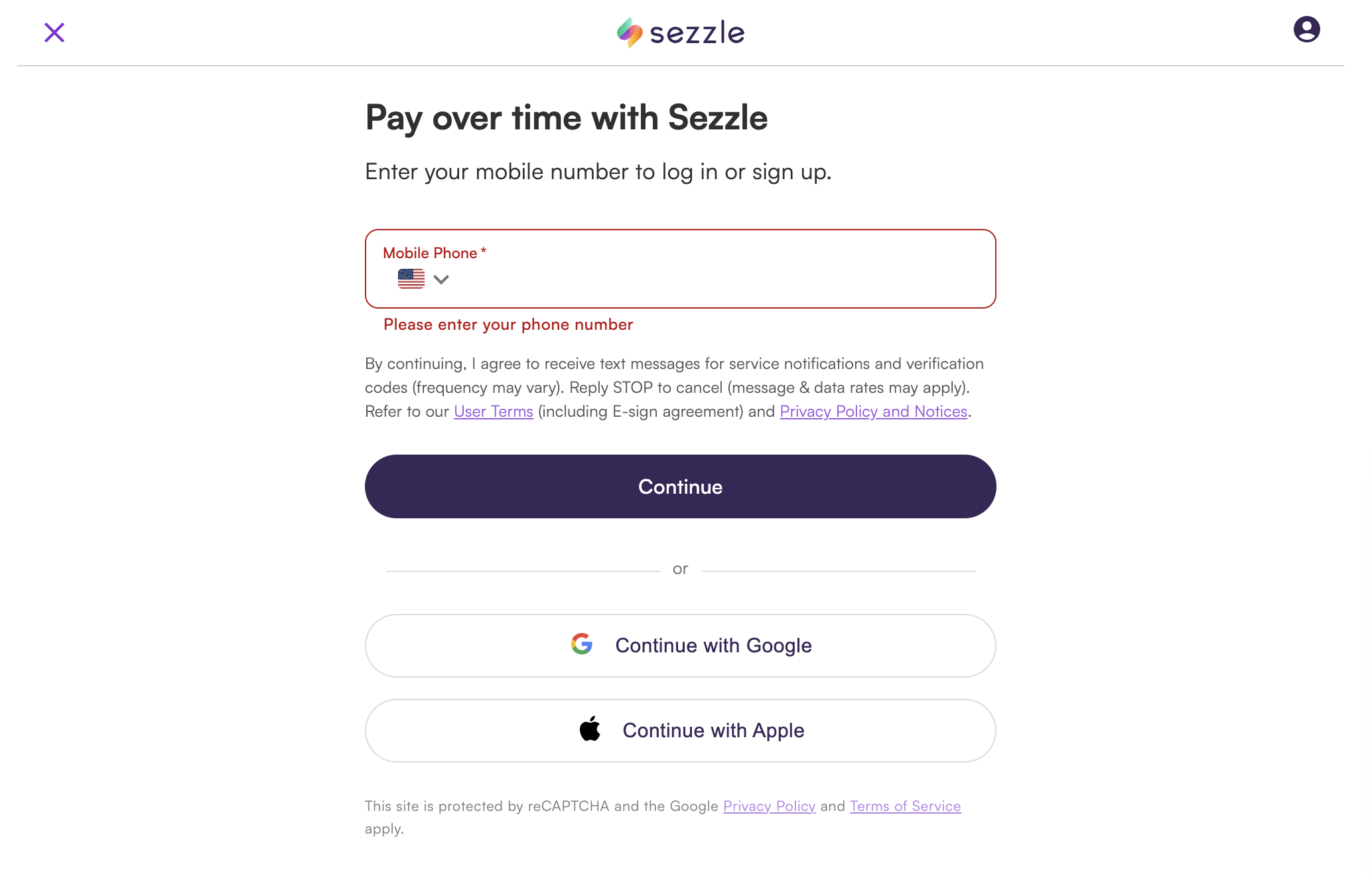
Step 3: Enter and Verify Your Mobile Number
Enter your mobile number and click continue. Sezzle may send an OTP or verification code to confirm your phone number before moving ahead.
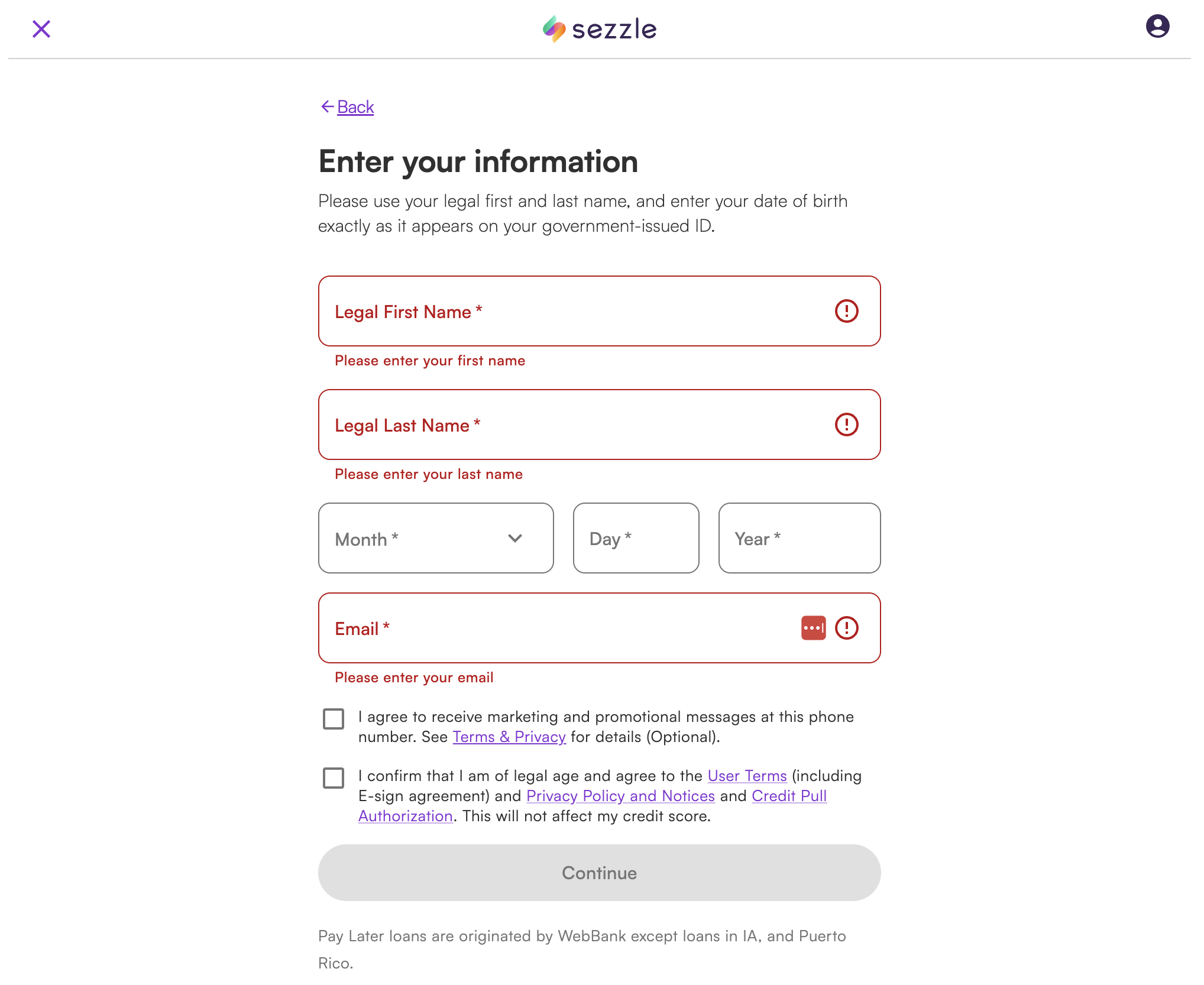
Step 4: Fill in Your Personal Information
Enter your legal details exactly as requested:
- First name
- Last name
- Date of birth
- Email address
Email verification may also be required depending on the account flow.
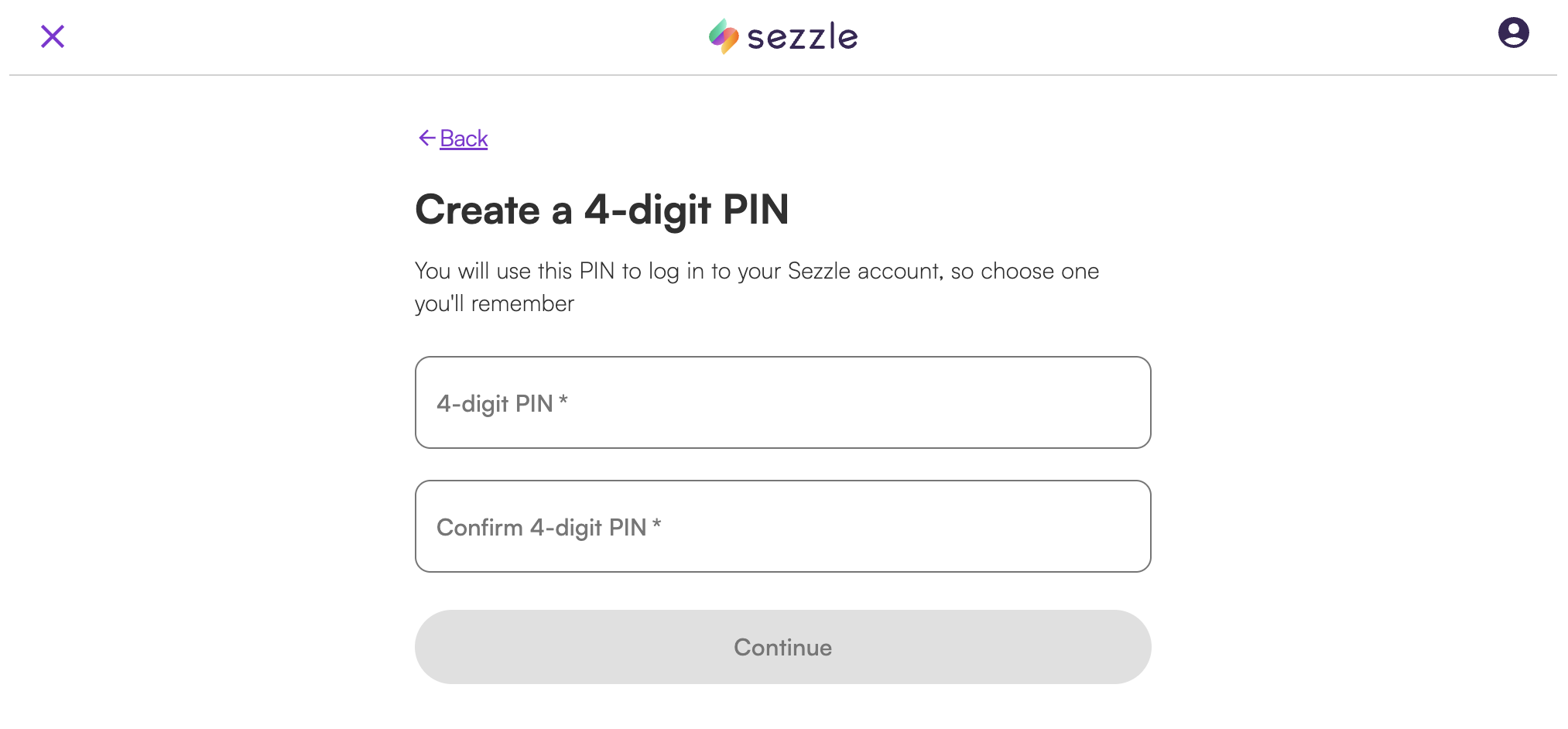
Step 5: Create a 4-Digit PIN
Create and confirm a 4-digit PIN. This PIN is used to log in securely to your Sezzle account later.
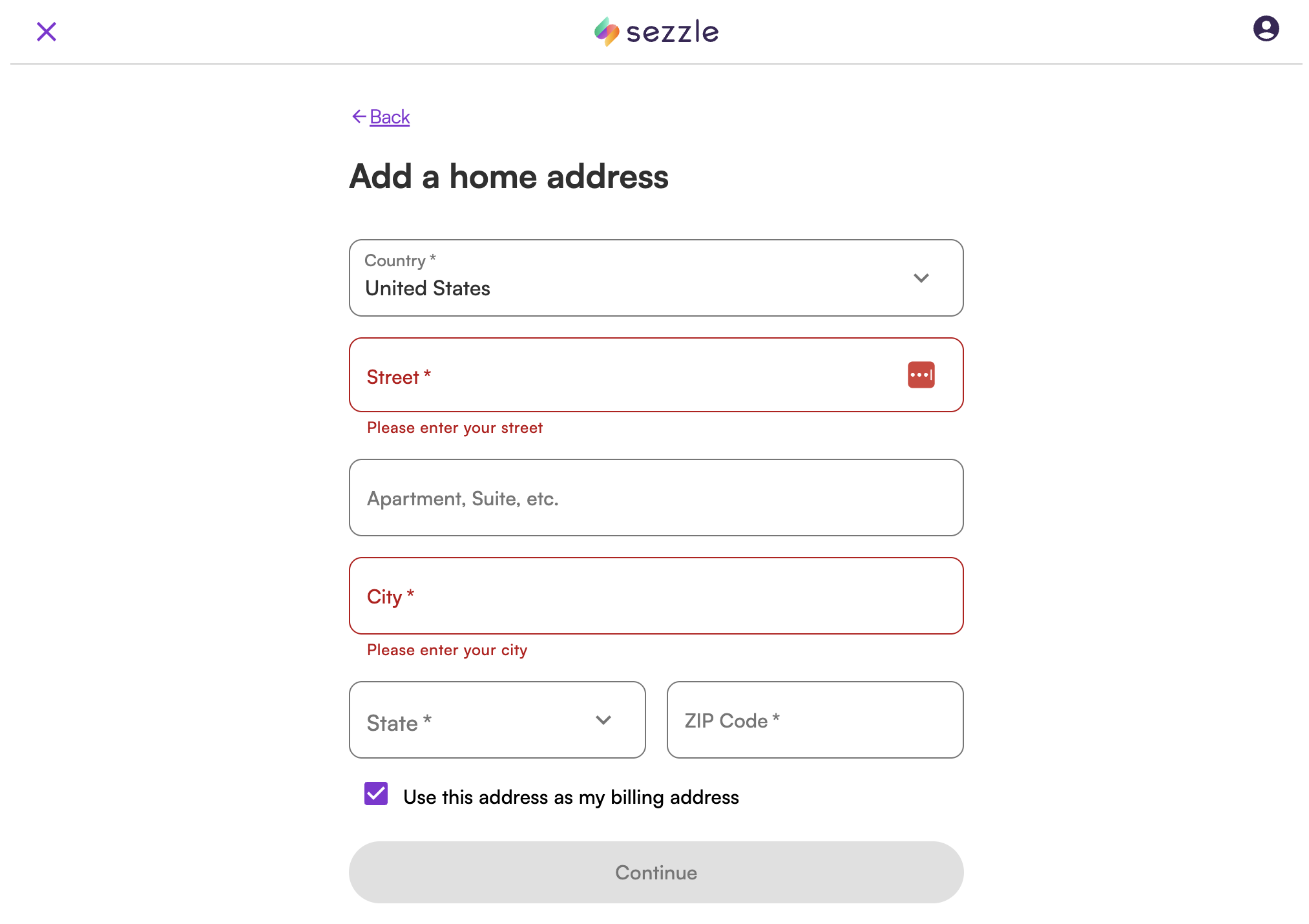
Step 6: Add Your Home Address
Enter your home address details:
- Street address
- Apartment or suite if applicable
- City
- State
- ZIP code
Step 7: Add Billing Address
If your billing address is different from your home address, enter it in the next step. If it is the same, you can usually keep the option selected to use the same address as billing.
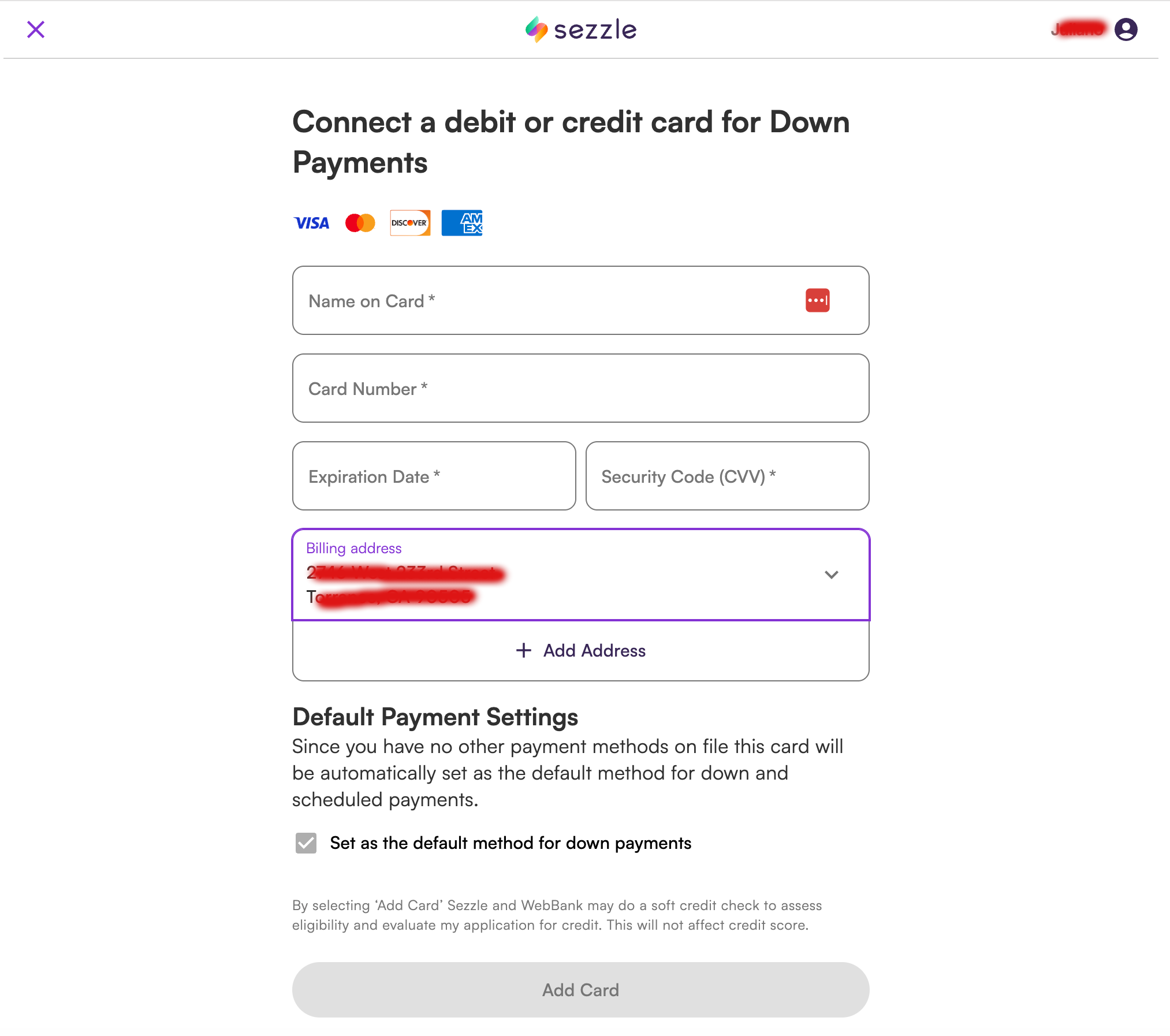
Step 8: Add Your Payment Method
Add your debit or credit card information as requested by Sezzle. Make sure the billing details match to avoid verification issues.
Step 9: Choose Your Payment Plan
Sezzle may show you payment plan options such as:
- Pay Later – split the purchase into installments
- Pay in 1 – pay the full amount at once
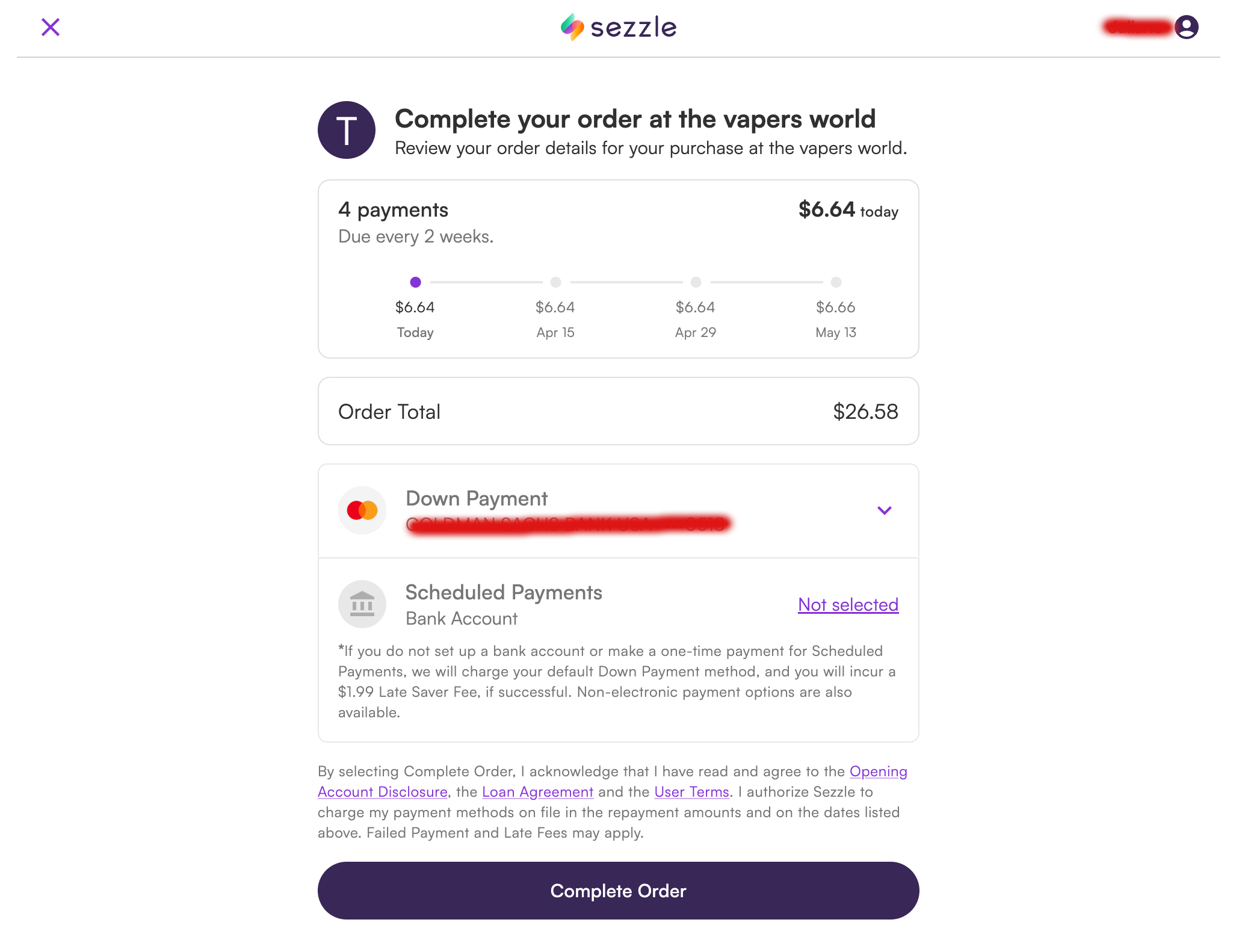
Step 10: Review and Confirm
Review the payment breakdown carefully and click continue or approve to complete the order.
Step 11: Return to the Store
After approval, you will be redirected back to the website and your order will be placed successfully.
Important Notes
- There will be no additional charge from Sezzle.
- Approval is handled by Sezzle during checkout.
- Mobile and email verification may be required.
- Incorrect personal, billing, or address information may delay approval.
How to Pay the Full Amount at Once Using Sezzle Virtual Card
If you want to pay the full amount at once instead of using installments, you need to activate Sezzle’s Virtual Card. This requires the Sezzle app.
Virtual Card Step 1: Install the Sezzle App
Download and install the Sezzle app on your phone from the App Store or Google Play.
| App Store | Google Play |
Virtual Card Step 2: Log In and Open the Virtual Card Section
Log in to your Sezzle account in the app and go to the Virtual Card area.
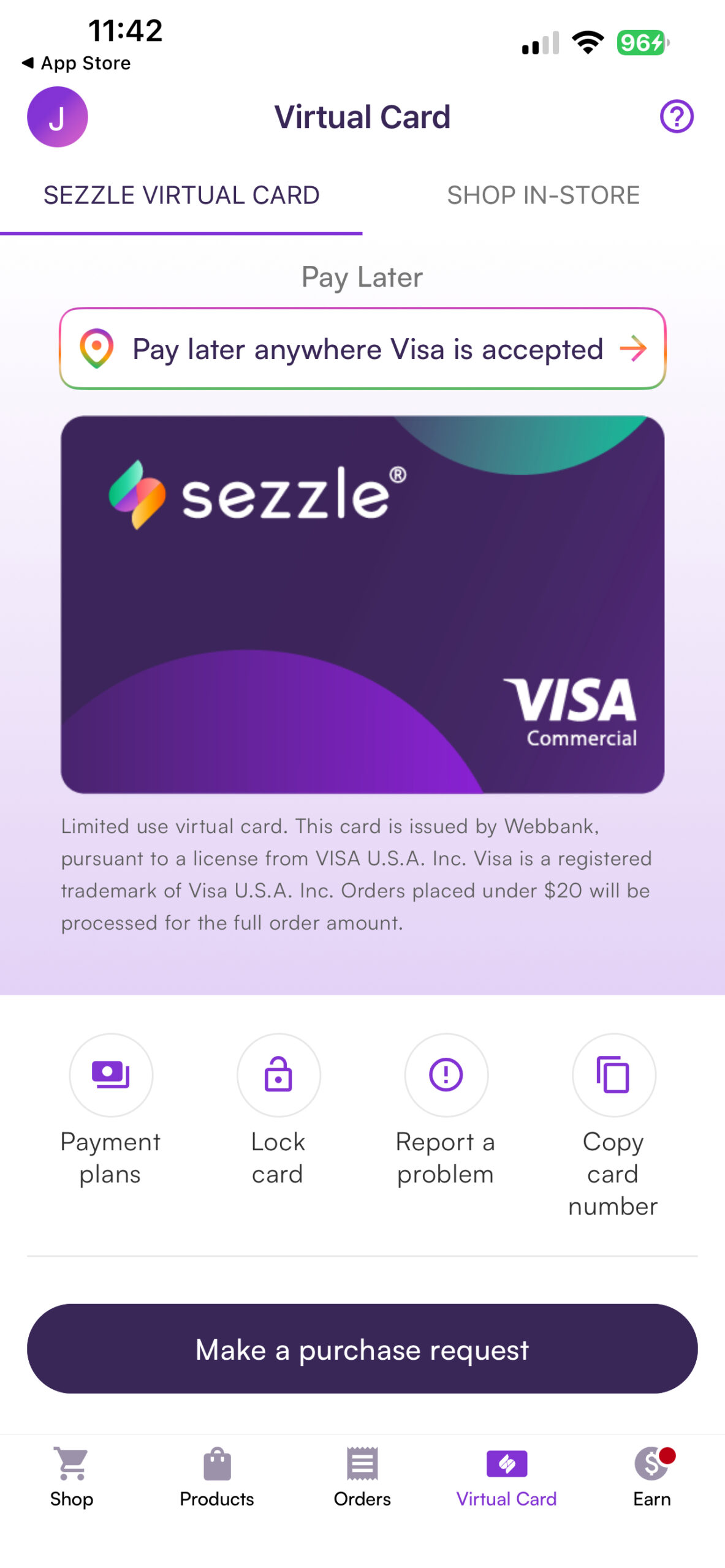
Virtual Card Step 3: Activate the Virtual Card
Activate the Sezzle Virtual Card so you can use it for checkout where Visa is accepted.
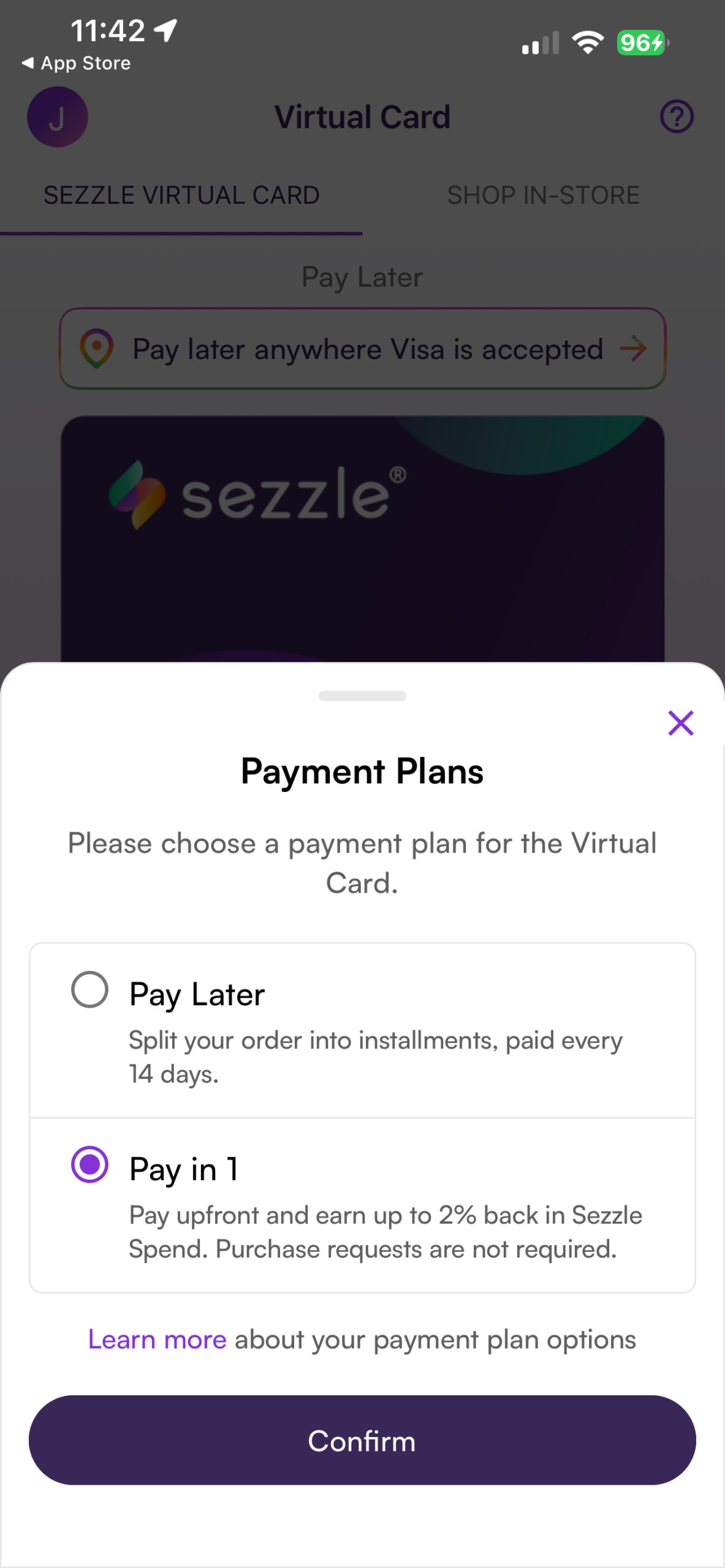
Virtual Card Step 4: Choose the Payment Option
In the payment plan section, choose Pay in 1 if you want to pay the full order amount at once.
Virtual Card Step 5: Make a Purchase Request
Tap Make a Purchase Request inside the app. Sezzle will prepare the virtual card for your transaction.
Virtual Card Step 6: Copy the Card Details
Copy the virtual card number and use it like a regular card during checkout.
Virtual Card Step 7: Complete the Purchase
Once the card is used successfully, your order will be processed just like a normal payment.
Final Tip
If you want the fastest checkout experience, keep your Sezzle account details ready and make sure your mobile number, email, address, and billing information are entered correctly.
